

Build an Airline Dashboard with ToolJet and Couchbase
- Build a fully functional Airline Dashboard using ToolJet's low-code platform and Couchbase
- Learn all 6 Couchbase operations in ToolJet — CRUD, SQL++, and Full-Text Search
- Connect ToolJet to Couchbase via the Data API for both Capella and self-managed clusters
Overview
In this tutorial, you will build an Airline Dashboard — a fully functional internal tool that lets you browse, search, create, edit, and delete airline records stored in Couchbase. You'll use ToolJet's visual app builder and connect it to Couchbase using the Couchbase marketplace plugin, covering all 6 supported operations.
By the end, you'll have a deployed web app that your team can use immediately — no backend code, no frontend framework, no deployment pipeline required.
What You'll Learn
- How to install and configure the Couchbase plugin from the ToolJet Marketplace
- How to connect to Couchbase via the Data API (both Capella and self-managed)
- How to run SQL++ queries with parameterized arguments
- How to perform CRUD operations (Get, Create, Update, Delete documents)
- How to add Full-Text Search (FTS) to your app
- How to bind Couchbase query results to ToolJet UI components
What You'll Build
An Airline Dashboard with:
- A table displaying airline data from the
travel-sampledataset - A search bar powered by Couchbase Full-Text Search
- A form to create new airline documents
- Edit and delete capabilities for existing airlines
- All connected to Couchbase with zero backend code
Prerequisites
To follow this tutorial, you will need:
- A Couchbase cluster with the
travel-samplebucket loaded (see Couchbase Cluster Setup) - A ToolJet instance — either ToolJet Cloud (free tier available) or self-hosted via Docker (see ToolJet Setup)
Couchbase Cluster Setup
Option A: Couchbase Capella (Cloud) — Recommended
Couchbase Capella is the easiest way to get started. It has a free tier and the Data API is available out of the box.
- Sign up at cloud.couchbase.com and create a free-tier cluster
- Load the travel-sample bucket:
- Go to your cluster → Settings → Sample Buckets
- Select
travel-sampleand click Load Sample Data - Wait for the import to complete
- For detailed instructions, see Load travel-sample bucket in Couchbase Capella
- Create database credentials:
- Go to Cluster Access → Database Access
- Create a new user with Read/Write access to the
travel-samplebucket - Note down the username and password
- Allow network access:
- Go to Allowed IP Addresses
- Add the IP address of your ToolJet instance (visit whatismyip.com to find your public IP if self-hosting)
- For detailed instructions, see Allow IP Address on Capella
Security Note: Never allow
0.0.0.0/0(all IPs). Always restrict access to specific IP addresses, even in development. - Find your Data API endpoint:
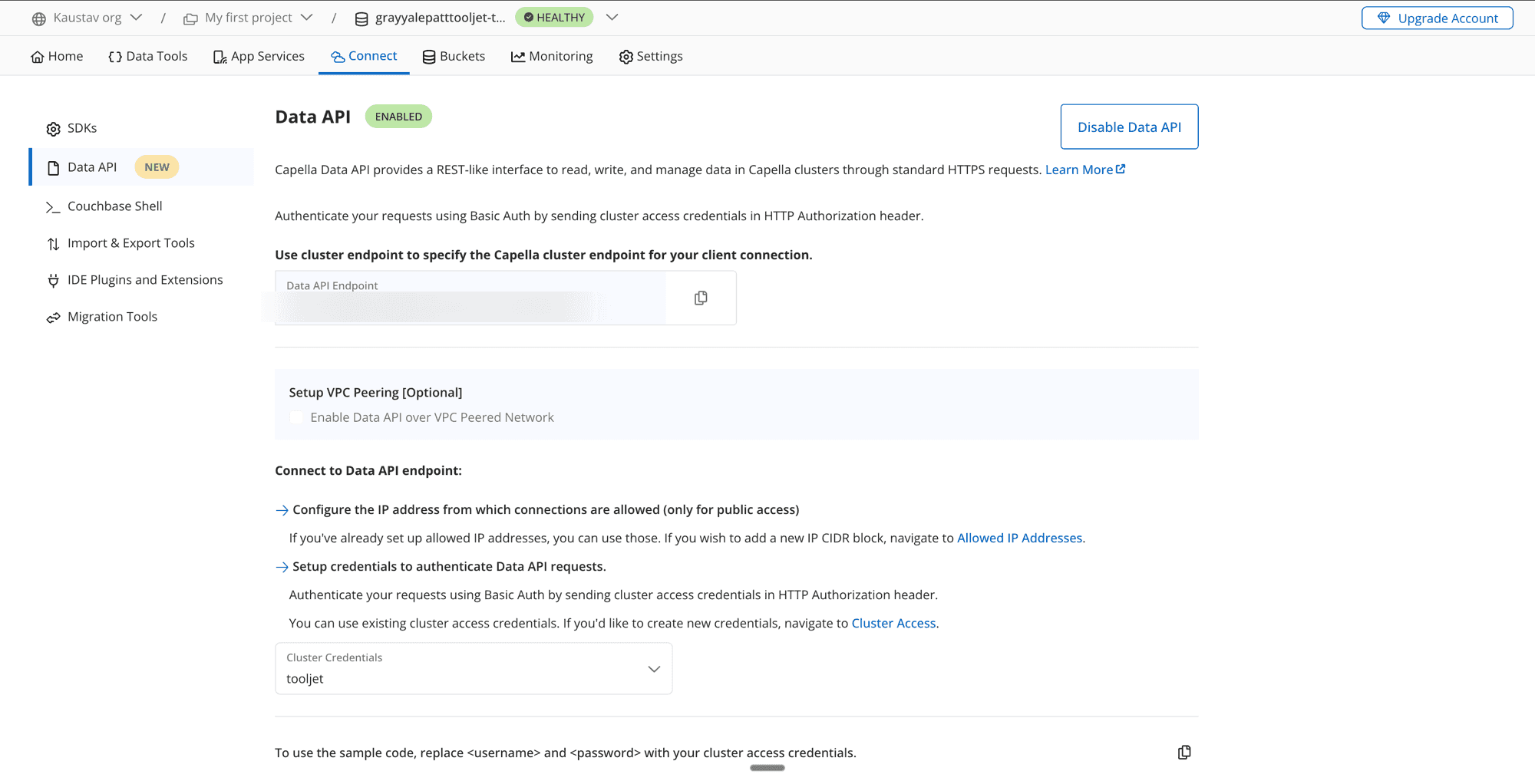
- Go to Connect tab → Data API
- If the status shows NOT ENABLED, click Enable Data API and confirm (this can take a few minutes)
- Once enabled, copy the endpoint URL — it will look like
https://<cluster-id>.data.cloud.couchbase.com
Option B: Self-Managed Couchbase Server (Docker)
If you prefer to run Couchbase locally:
- Start Couchbase Server via Docker:
docker run -d --name couchbase-server \
  -p 8091-8096:8091-8096 \
  -p 11210-11211:11210-11211 \
  -p 18091-18096:18091-18096 \
couchbase:7.6.2-
Initialize the cluster:
- Open
http://<your-server-hostname-or-ip>:8091in your browser (uselocalhostif running Docker on your local machine) - Follow the setup wizard to create the cluster
- Create an admin user (note the username and password)
- Open
-
Load the travel-sample bucket:
- Go to Settings → Sample Buckets
- Check
travel-sampleand click Load Sample Data
-
Your Data API endpoint is the base URL of the server running Couchbase:
http://<your-server-hostname-or-ip>:8091Use
http://localhost:8091only if Couchbase is running on the same machine as ToolJet. For remote servers, replace with the server's actual hostname or IP address.Note: For self-managed clusters, the Data API is available on the same port as the management API. Ensure Data API is enabled in your cluster configuration.
ToolJet Setup
Option A: ToolJet Cloud — Recommended
- Sign up at tooljet.com (free tier available)
- You'll get a workspace ready to use immediately
Option B: Self-Hosted ToolJet (Docker)
docker run -d \
  --name tooljet \
  -p 80:80 \
  tooljet/tooljet-ce:v3.16.0-LTS
Open http://localhost and create your admin account. For more setup options (Kubernetes, AWS, GCP, Azure), see the ToolJet self-hosting guide.
Create an FTS Index
Step 9 of this tutorial uses Couchbase Full-Text Search. Create the index now so it's ready when you need it.
Capella Users
- In the Capella UI, go to your cluster → Search
- Click Create Index
- Configure:
- Index Name:
airline-name-index - Bucket:
travel-sample - Scope:
inventory - Add a Type Mapping for the
airlinecollection - Index the
namefield as text
- Index Name:
- Click Create
Self-Managed Users
- Open the Couchbase Web Console → Search
- Click Add Index
- Configure:
- Index Name:
airline-name-index - Bucket:
travel-sample - Scope:
inventory - Add a Type Mapping for the
airlinecollection - Index the
namefield as text
- Index Name:
- Click Create Index
Step 1: Install the Couchbase Plugin
The Couchbase integration is a marketplace plugin — you need to install it first.
- In ToolJet, click the gear icon (bottom-left) to open Workspace Settings
- Navigate to Marketplace → Plugins
- Search for "Couchbase"
- Click Install
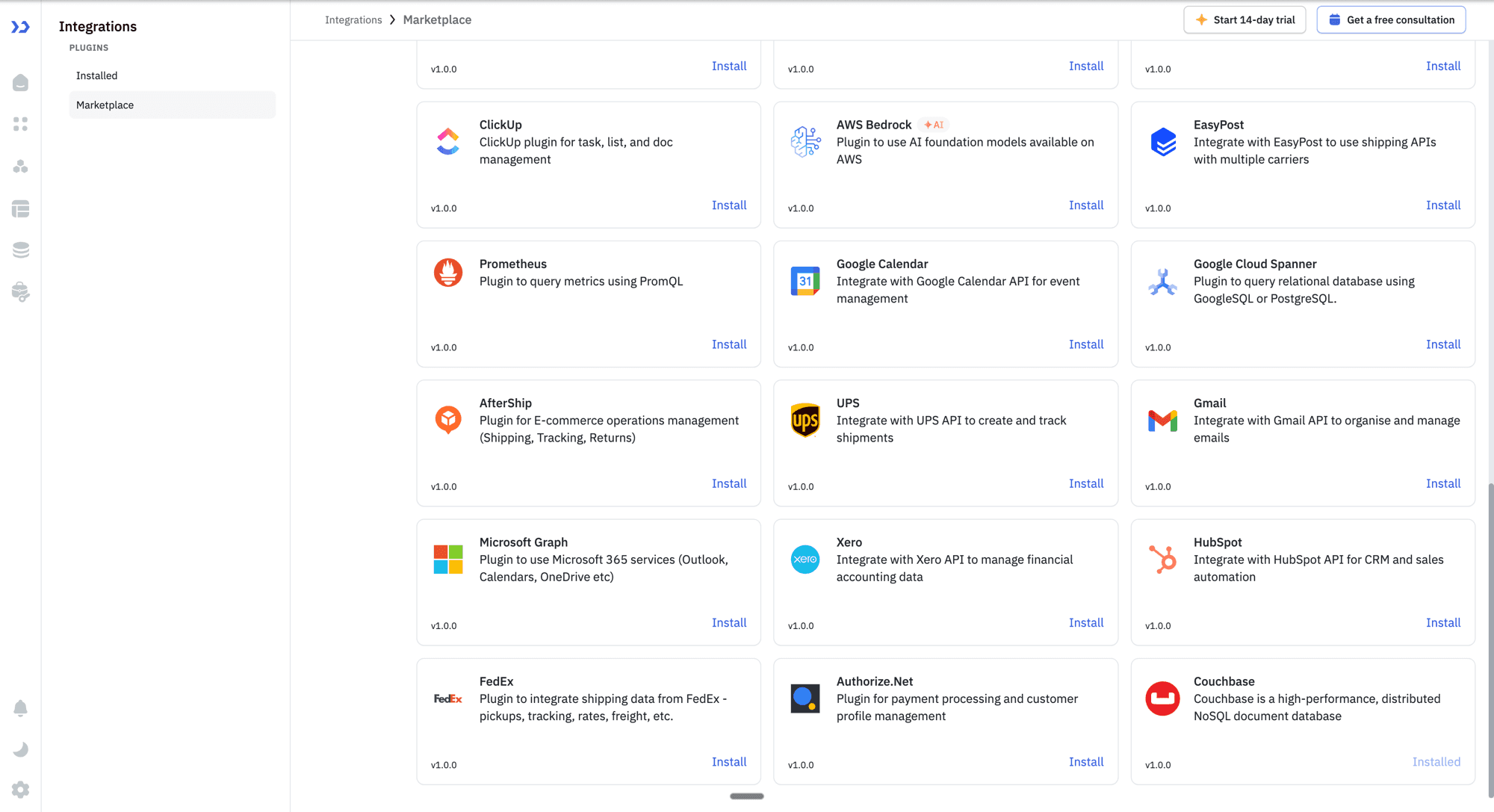
You should see the Couchbase plugin with its red logo appear in your installed plugins list.
Step 2: Configure the Couchbase Data Source
Now connect ToolJet to your Couchbase cluster:
- Go to Data Sources (left sidebar, database icon)
- Click + Add new data source
- Search for "Couchbase" and select it
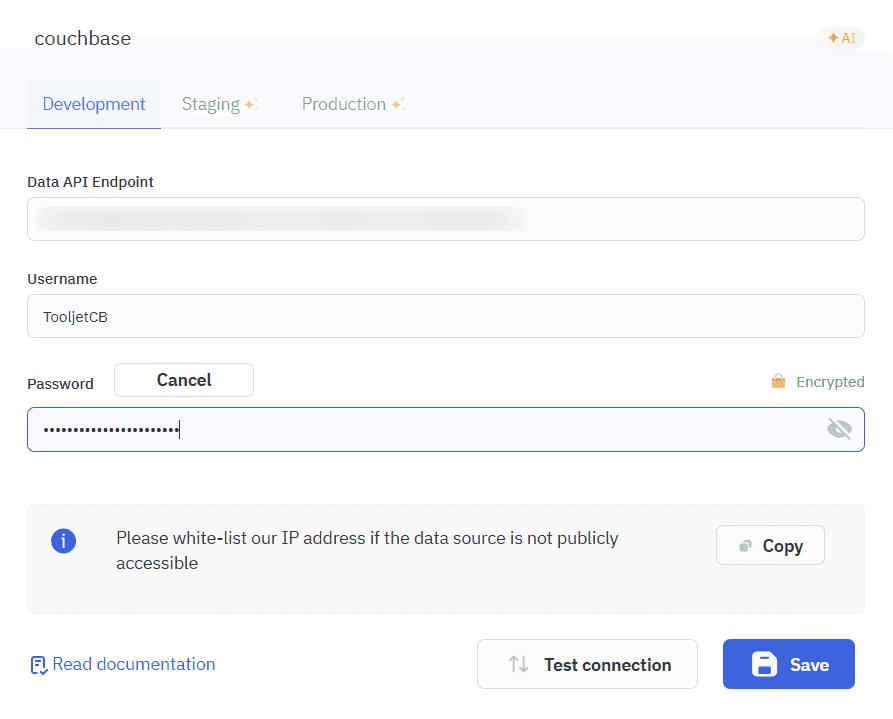
- Enter your Data API Endpoint, Username, and Password from the prerequisites section
- Click Test Connection — you should see a green "Connection successful" message
- Click Save
Step 3: Create a SQL++ Query to List Airlines
Let's fetch airline data from the travel-sample dataset.
- Create a new app: click + Create new app and name it "Airline Dashboard"
- In the bottom panel, click + Add → Query → select your Couchbase data source
- Name the query
listAirlines - Configure the query:
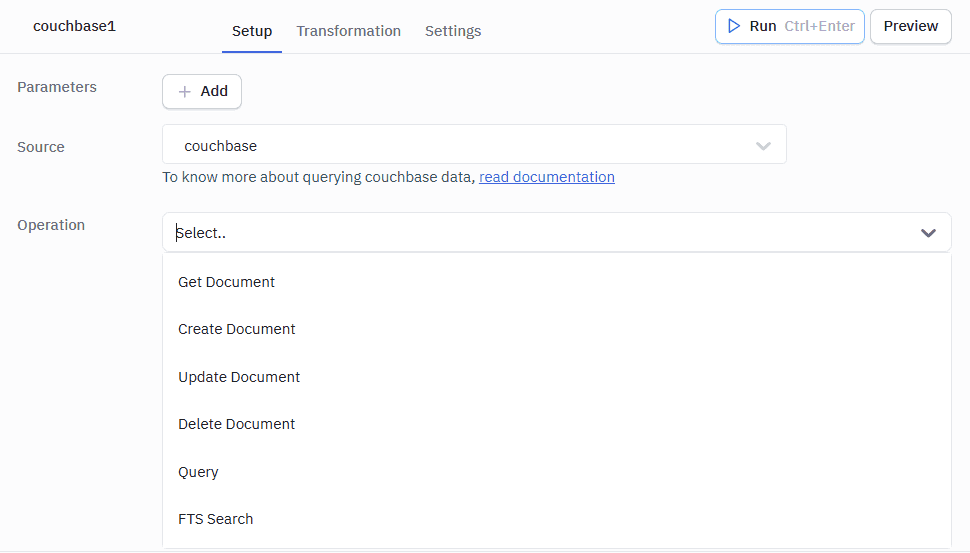
- Operation: Select Query from the dropdown (see all available operations below)
- SQL++ Query: Enter the following:
SELECT META().id AS doc_id, name, country, callsign, iata, icao
FROM `travel-sample`.`inventory`.`airline`
ORDER BY name
LIMIT 50- Click Run to test the query
You should see results in the preview panel — a list of airlines with their names, countries, and callsigns.
How it works: This SQL++ query runs against the
airlinecollection inside theinventoryscope of thetravel-samplebucket.META().idgives us the document ID, which we'll need for CRUD operations later.
Using Parameterized Queries
Now let's create a second query that uses parameterized arguments — this is the recommended way to pass dynamic values in SQL++ because it prevents injection attacks.
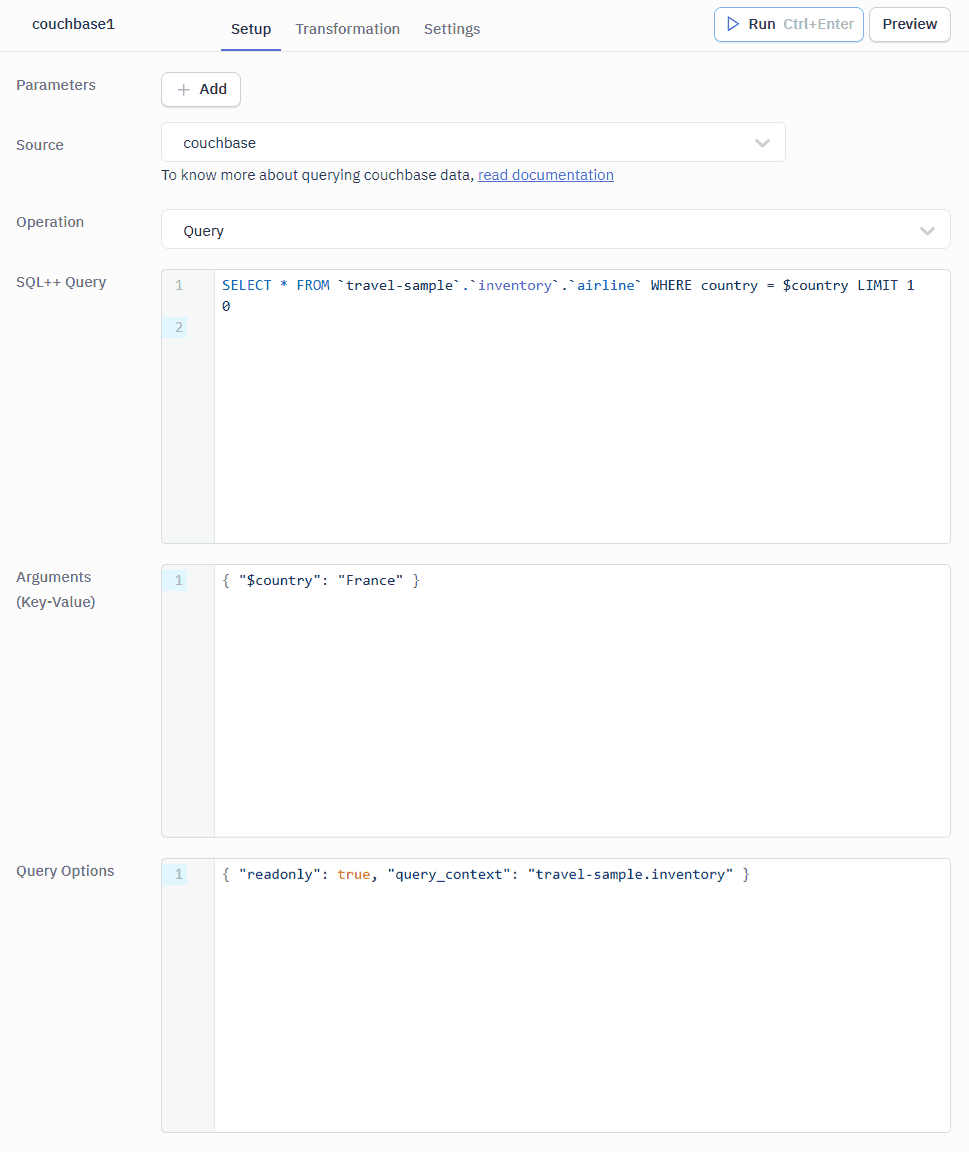
- Create another query named
listAirlinesByCountry - Configure it:
- Operation: Query
- SQL++ Query:
SELECT META().id AS doc_id, name, country, callsign, iata, icao
FROM `travel-sample`.`inventory`.`airline`
WHERE country = $country
ORDER BY name
LIMIT 50- Arguments (Key-Value):
{ "$country": "United States" }
- Click Run — you should see only airlines from the United States
Why parameterized queries? Instead of concatenating user input directly into SQL++ strings (which risks injection attacks), Couchbase's
$parametersyntax sends values separately from the query statement. The plugin passes these through theargsfield in the Data API request body. You can also pass Query Options like{ "readonly": true, "timeout": "30s" }for additional control.
Step 4: Display Airlines in a Table
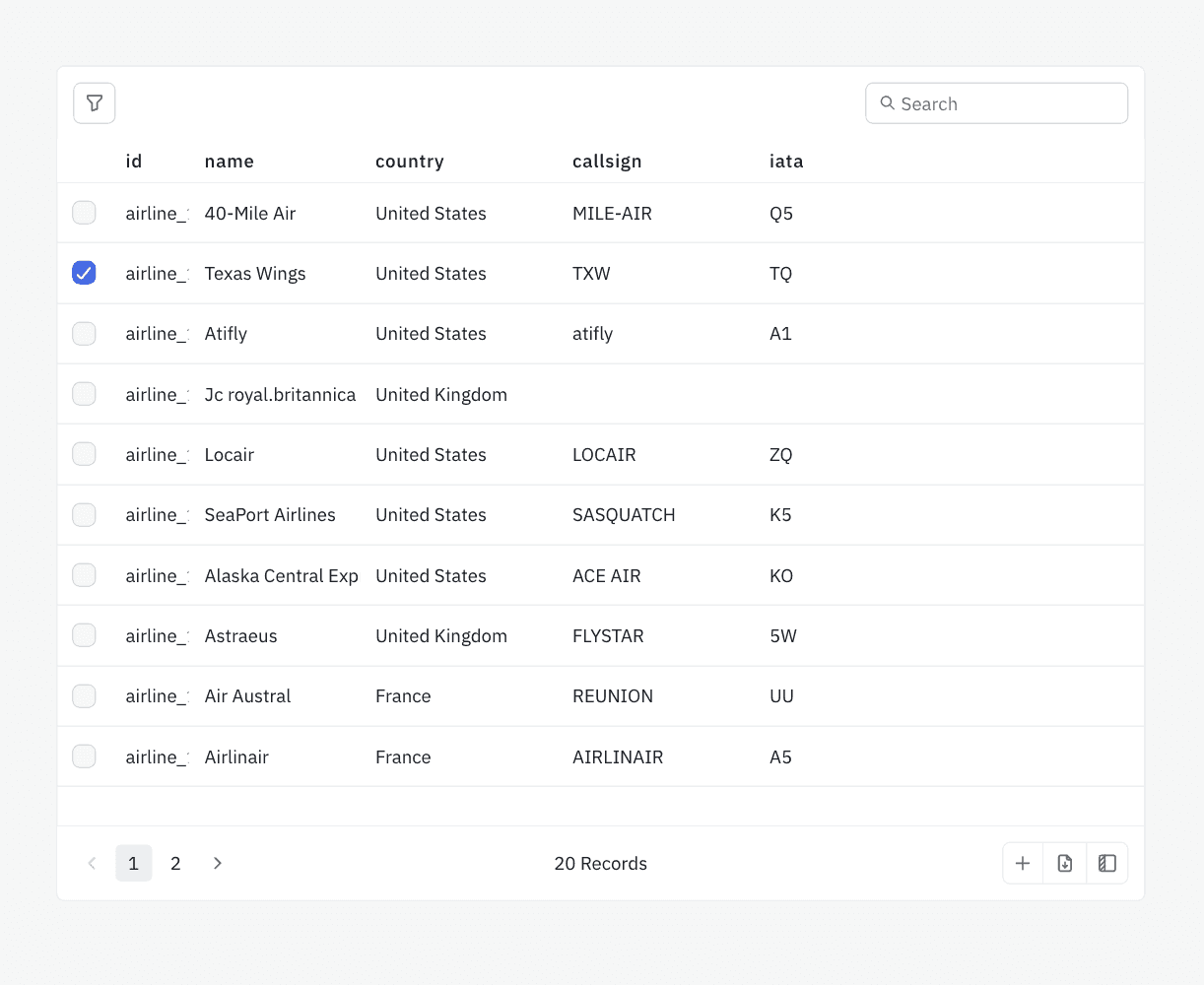
- From the Components panel (right sidebar), drag a Table component onto the canvas
- In the Table's properties (right panel), set the Data field to:
{{queries.listAirlines.data.results}}- The table will automatically populate with columns based on the query results
You should now see a table showing airline names, countries, callsigns, IATA codes, and ICAO codes.
Customize the table (optional):
- Click on individual columns to rename headers (e.g.,
doc_id→ "Document ID") - Hide the
doc_idcolumn if you don't want users to see it (but keep it — we'll need it later) - Enable sorting and filtering on columns
Step 5: View Airline Details (Get Document)
Let's add the ability to view a single airline's full document when a user clicks a row.
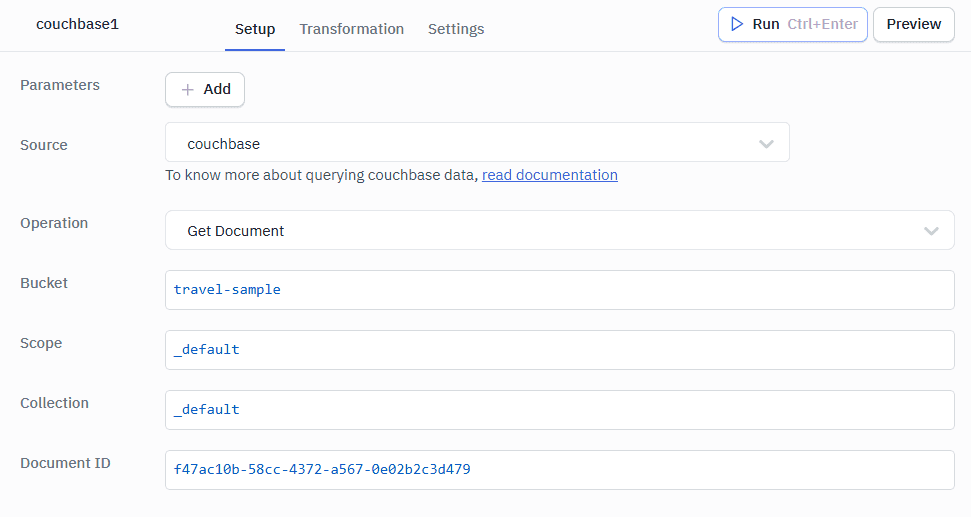
- Create a new query named
getAirline:- Operation: Get Document
- Bucket:
travel-sample - Scope:
inventory - Collection:
airline - Document ID:
{{components.table1.selectedRow.doc_id}}
-
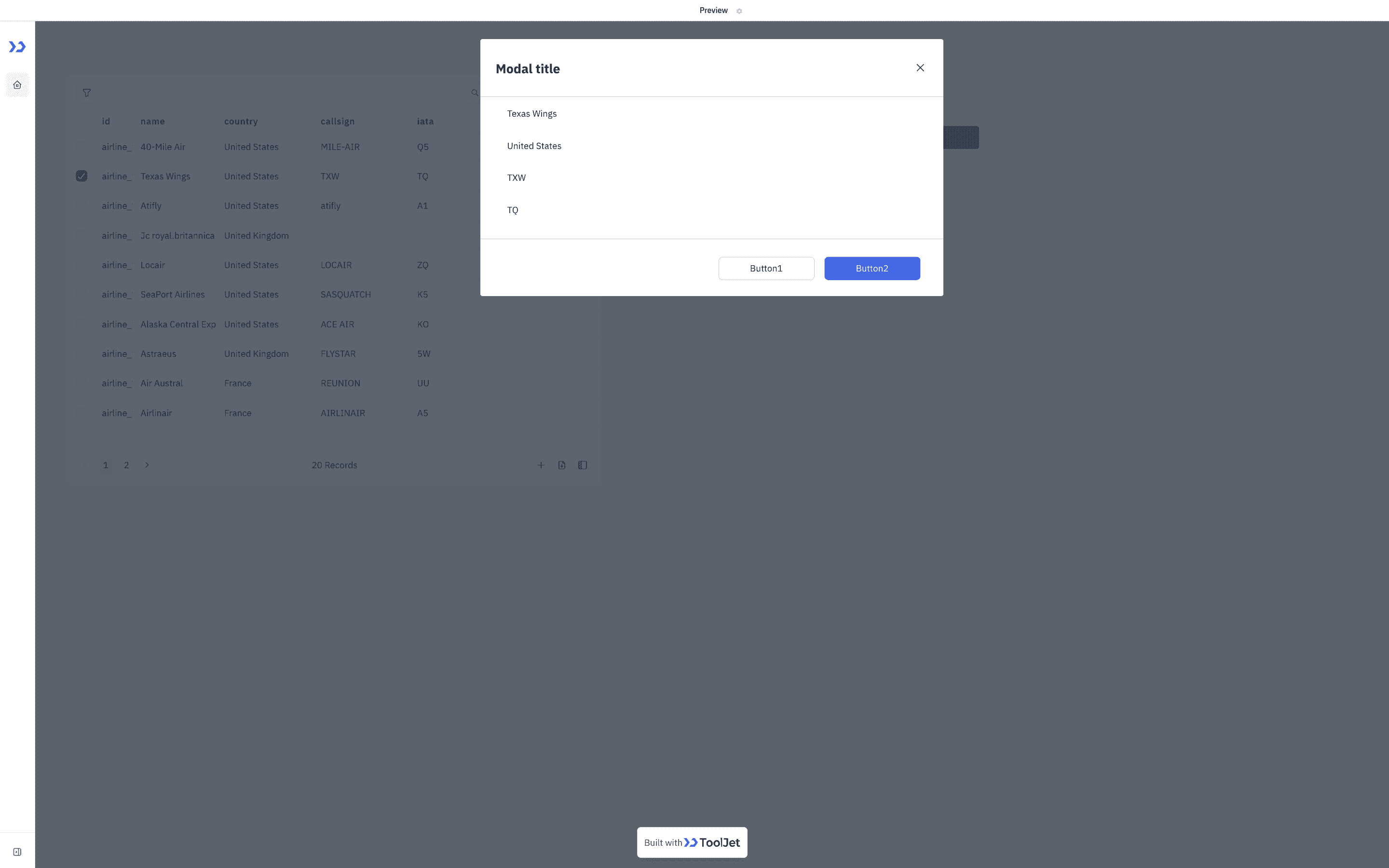
Drag a Modal component onto the canvas and add Text components inside it to display:
{{queries.getAirline.data.name}}— Airline name{{queries.getAirline.data.country}}— Country{{queries.getAirline.data.callsign}}— Callsign{{queries.getAirline.data.iata}}— IATA code
-
On the Table component, add a Row clicked event handler:
- Action: Run query →
getAirline - Then Show modal → your modal component
- Action: Run query →
Now when you click any airline row, it fetches the full document and displays it in a modal:
Step 6: Create a New Airline (Create Document)
-
Drag a Button component above the table, label it "Add Airline"
-
Drag a Modal component for the creation form. Inside it, add:
- Text Input:
airlineName(label: "Airline Name") - Text Input:
airlineCountry(label: "Country") - Text Input:
airlineCallsign(label: "Callsign") - Text Input:
airlineIata(label: "IATA Code") - Text Input:
airlineIcao(label: "ICAO Code") - Text Input:
airlineDocId(label: "Document ID", placeholder: "airline_9999") - Button: "Create" (to submit the form)
- Text Input:
-
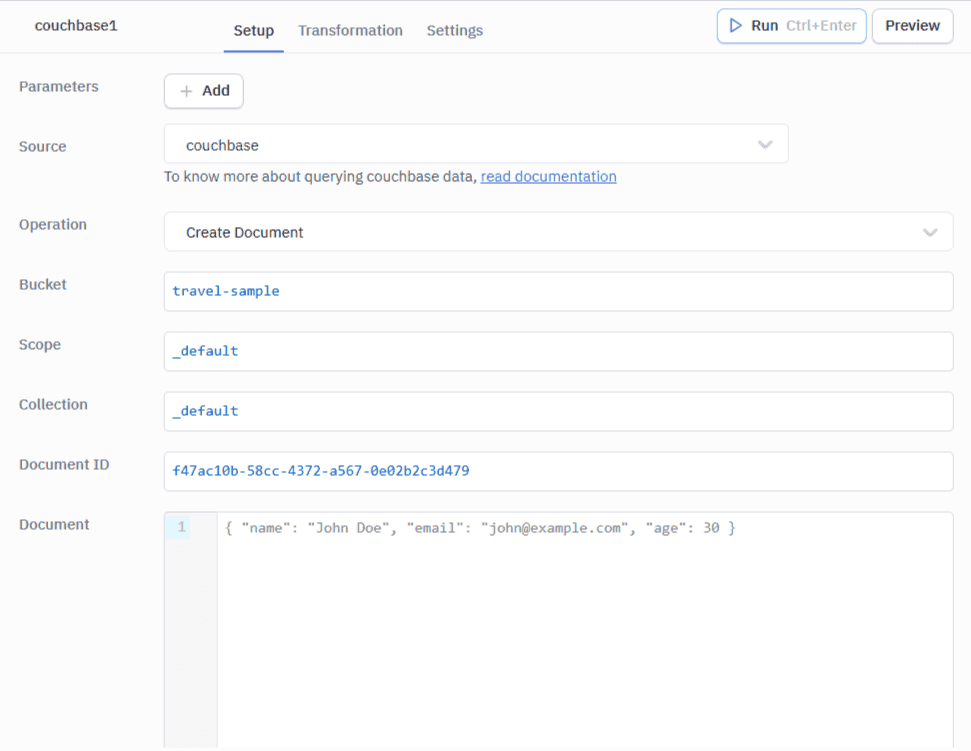
Create a new query named
createAirline:- Operation: Create Document
- Bucket:
travel-sample - Scope:
inventory - Collection:
airline - Document ID:
{{components.airlineDocId.value}} - Document:
{
  "type": "airline",
  "name": "{{components.airlineName.value}}",
  "country": "{{components.airlineCountry.value}}",
  "callsign": "{{components.airlineCallsign.value}}",
  "iata": "{{components.airlineIata.value}}",
  "icao": "{{components.airlineIcao.value}}"
}
- Wire it up:
- "Add Airline" button → Show modal (the creation form modal)
- "Create" button inside modal → Run query
createAirline, then Run querylistAirlines(to refresh the table), then Hide modal
Test it: Click "Add Airline", fill in the form, click "Create". The new airline should appear in the table.
Step 7: Edit an Airline (Update Document)
-
Add an Actions column to the table with an "Edit" button
-
Create a new modal with the same form fields as Step 6, but pre-populated with the selected row's data:
- Set each input's Default value to the corresponding table column, e.g.:
airlineNameEditdefault:{{components.table1.selectedRow.name}}airlineCountryEditdefault:{{components.table1.selectedRow.country}}
- Set each input's Default value to the corresponding table column, e.g.:
-
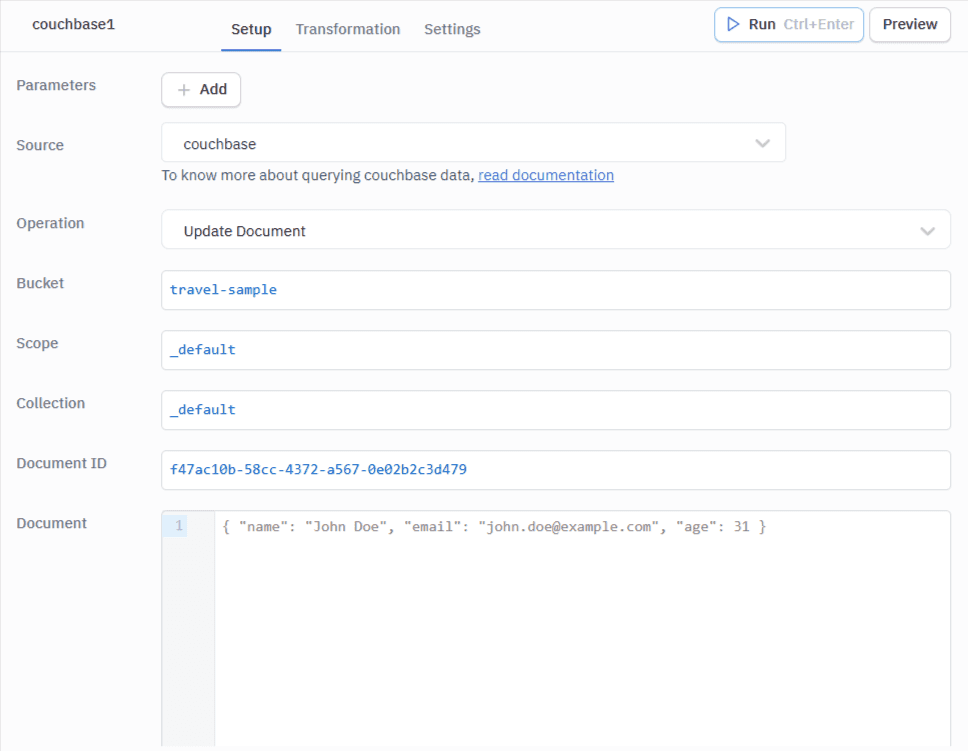
Create a new query named
updateAirline:- Operation: Update Document
- Bucket:
travel-sample - Scope:
inventory - Collection:
airline - Document ID:
{{components.table1.selectedRow.doc_id}} - Document:
{
  "type": "airline",
  "name": "{{components.airlineNameEdit.value}}",
  "country": "{{components.airlineCountryEdit.value}}",
  "callsign": "{{components.airlineCallsignEdit.value}}",
  "iata": "{{components.airlineIataEdit.value}}",
  "icao": "{{components.airlineIcaoEdit.value}}"
}
- Wire the "Save" button to: Run query
updateAirline→ Run querylistAirlines→ Hide modal
Important: The Update operation performs a full document replacement (HTTP PUT), not a partial update. Make sure your document JSON includes all fields, not just the ones you changed.
Step 8: Delete an Airline (Delete Document)
-
Add a "Delete" button in the table's Actions column
-
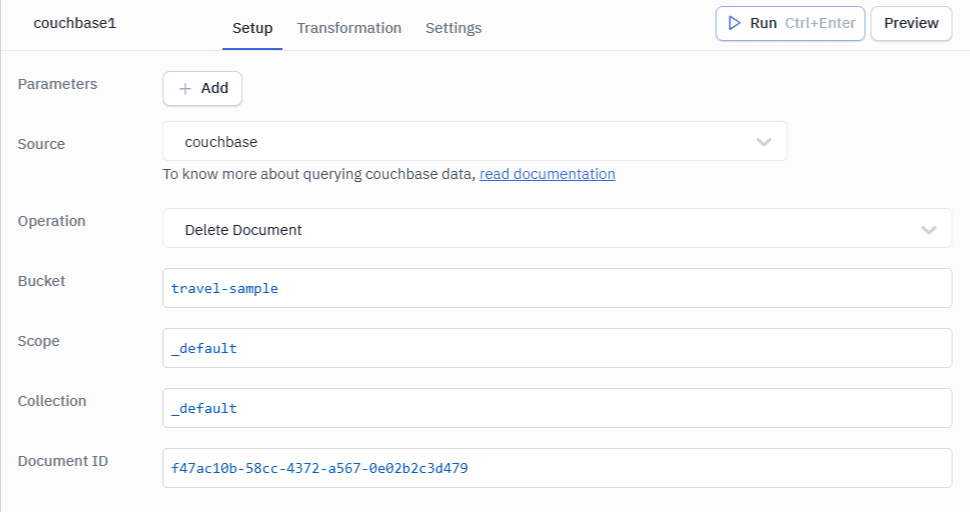
Create a new query named
deleteAirline:- Operation: Delete Document
- Bucket:
travel-sample - Scope:
inventory - Collection:
airline - Document ID:
{{components.table1.selectedRow.doc_id}}
- Wire the "Delete" button to show a confirmation dialog, then:
- Run query
deleteAirline→ Run querylistAirlines(to refresh the table)
- Run query
Step 9: Add Full-Text Search
Now let's add a search bar that uses Couchbase's Full-Text Search to find airlines by name.
Before continuing, ensure you have created the
airline-name-indexFTS index as described in the Prerequisites section.
Add Search to ToolJet
-
Drag a Text Input component above the table, label it "Search Airlines" (
searchInput) -
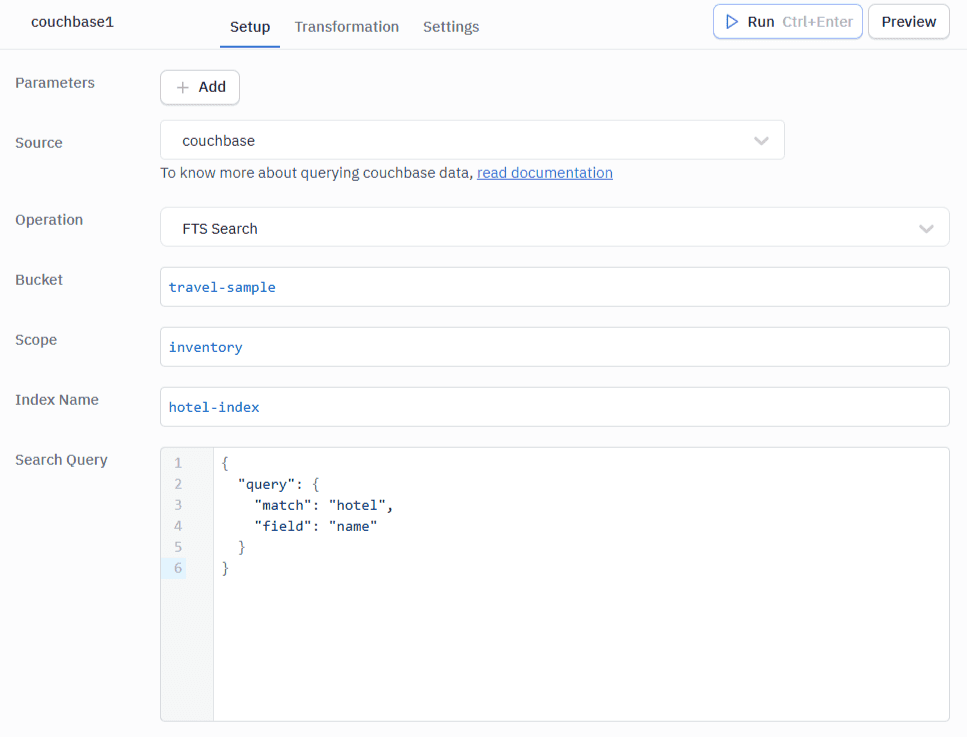
Create a new query named
searchAirlines:- Operation: FTS Search
- Bucket:
travel-sample - Scope:
inventory - Index Name:
airline-name-index - Search Query:
{
  "query": {
    "match": "{{components.searchInput.value}}",
    "field": "name"
  },
  "fields": ["name", "country", "callsign"],
  "size": 20
}
-
Add an event handler on the search input: On change → Run query
searchAirlines -
Update the Table's Data to conditionally show search results or all airlines:
{{components.searchInput.value
  ? queries.searchAirlines.data.hits.map(hit => hit.fields)
  : queries.listAirlines.data.results}}
Now when you type in the search bar, it performs a real-time Full-Text Search against Couchbase and displays matching airlines.
Step 10: Deploy the App
- Click the Deploy button (top-right, rocket icon)
- Your app is now live with a shareable URL
- Share the URL with your team — they can use it immediately
Conclusion
You've built a complete Airline Dashboard that demonstrates all 6 Couchbase operations in ToolJet:
| Operation | What You Built |
|---|---|
| SQL++ Query | Main airline listing with sorting |
| Get Document | Click-to-view airline details modal |
| Create Document | "Add Airline" form |
| Update Document | Inline edit functionality |
| Delete Document | Delete with confirmation |
| FTS Search | Real-time search bar |
Key Takeaways
- No backend code — ToolJet handles the API layer, UI rendering, and deployment
- Couchbase Data API — the plugin uses REST calls, making it compatible with both Capella and self-managed clusters
- SQL++ for analytics — parameterized queries keep your app secure
- FTS for search — real-time full-text search powered by Couchbase indexes
Next Steps
- Add vector search: Replace the FTS match query with a vector search query for semantic/AI-powered search
- Build more apps: Customer support tools, inventory managers, reporting dashboards — all on your Couchbase data
- Explore ToolJet components: Charts, maps, JSON viewers, and 50+ other widgets can visualize your Couchbase data in different ways