

Build PDF Chat App With Haystack, OpenAI and Couchbase Hyperscale Vector Index
- Construct a PDF Chat App with Haystack, Couchbase Hyperscale Vector Index, and Streamlit.
- Learn to upload PDFs into Couchbase Vector Store with Haystack.
- Discover how to use RAG's for context-based Q&A's from PDFs with LLMs.
Introduction
Welcome to this comprehensive guide on constructing an AI-enhanced Chat Application using Couchbase's Hyperscale Vector Index. We will create a dynamic chat interface capable of delving into PDF documents to extract and provide summaries, key facts, and answers to your queries. By the end of this tutorial, you'll have a powerful tool at your disposal, transforming the way you interact with and utilize the information contained within PDFs.
Choosing Between Hyperscale and Composite Vector Indexes
Couchbase supports multiple types of vector indexes for different use cases. This tutorial uses Hyperscale Vector Index, but you should be aware of the alternatives:
Hyperscale Vector Index (used in this tutorial):
- Best for pure vector similarity search at massive scale
- Optimized for RAG and chatbot applications
- Handles billions of documents with sub-second query latency
- Ideal when you need fast semantic search without metadata filtering
Composite Vector Index:
- Best for vector search with metadata filtering
- Combines vector fields with scalar fields (e.g., date, category, user_id)
- Enables pre-filtering before vector search for more efficient queries
- Ideal when you need to filter documents by attributes before semantic search
- Example use case: "Find similar documents from last month" or "Search within user's documents"
Search Vector Index:
- Best for hybrid search combining keywords, geospatial, and semantic search
- Flexible full-text search combined with vector similarity
- Complex filtering using FTS queries
- Compatible with Couchbase 7.6+
For this PDF chat demo, we use Hyperscale Vector Index for optimal performance in pure RAG applications. If your use case requires filtering by metadata (e.g., searching only in specific user's documents, or documents from a certain date range), consider using Composite Vector Index instead.
To learn more about choosing the right vector index, refer to the official Couchbase vector index documentation.
This tutorial will demonstrate how to:
- Create a Couchbase Hyperscale Vector Index for high-performance Vector Search.
- Chunk PDFs into Vectors with Haystack and use Couchbase Vector Store to store the vectors into Couchbase.
- Use large language models via the RAG framework for contextual insights. We will use OpenAI for generating Embeddings and querying the LLM.
- Automatically create Hyperscale vector index after document upload.
- Use a Streamlit interface to see it working in action. All these components come together to create a seamless, AI-powered chat experience.
Prerequisites
- Python 3.10 or higher installed.
- Ensure that the Python version is compatible with the Couchbase SDK.
- Couchbase Cluster (Self Managed or Capella) version 8.0+. Hyperscale Vector Index is recommended for Couchbase 8.0+.
- Streamlit installed via pip install streamlit.
Note that this tutorial is designed to work with the latest Couchbase-haystack SDK version (2.1.0+). It will not work with the older versions.
Important: This tutorial uses Hyperscale vector index, which are optimized for high-performance vector search at scale. For Couchbase 7.6+, consider using the Search Vector Index based approach instead.
Quick Start Guide:
Cloning Repo
git clone https://github.com/couchbase-examples/haystack-demo.gitInstall Dependencies
Any dependencies should be installed through pip, the default package manager for Python. You may use virtual environment as well.
python -m pip install -r requirements.txtSetup Database Configuration
Capella Setup
To know more about connecting to your Capella cluster, please follow the instructions.
Specifically, you need to do the following:
- Create the database credentials to access cluster via SDK
- Allow access to the Cluster from the IP on which the application is running.
Self Managed Setup
- Follow Couchbase Installation Options for installing the latest Couchbase Database Server Instance.
Create Bucket
- For this tutorial, we will use a specific bucket, scope, and collection. However, you may use any name of your choice but make sure to update names in all the steps.
- Create a bucket named
sample-bucket. We will use thepdf_datascope andpdf_chunkscollection of this bucket.
Automatic Hyperscale Vector Index Creation
Good news! The application automatically creates the Hyperscale vector index after you upload your first PDF. This is because Hyperscale indexes require training data (documents with embeddings) to be created successfully.
The application will:
- Upload and process your PDF documents
- Generate embeddings for document chunks
- Store the documents with embeddings in Couchbase
- Automatically create the Hyperscale vector index using SQL++
No manual index creation required! The index is created with the following configuration:
CREATE VECTOR INDEX idx_<collection_name>_vector
ON `<bucket_name>`.`<scope_name>`.`<collection_name>`(embedding VECTOR)
WITH {
  "dimension": 1536,
  "similarity": "DOT"
}
Index Parameters
- Vector field:
embeddingwith 1536 dimensions (matching OpenAI's text-embedding-ada-002/003 models) - Similarity metric:
DOTfor dot product similarity (optimized for OpenAI embeddings)
The application uses CouchbaseQueryDocumentStore which leverages SQL++ queries with the APPROX_VECTOR_DISTANCE() function for fast approximate nearest neighbor (ANN) search.
Note: If automatic creation fails, the application will attempt to create the index on first query as a fallback. If you prefer manual control, you can create the index yourself using the SQL++ query above after uploading documents.
Alternative: Using Composite Vector Index
If your application needs to filter documents by metadata before performing vector search, you can use a Composite Vector Index instead. The same code works with minimal changes!
Creating a Composite Vector Index:
CREATE INDEX idx_<collection_name>_composite
ON `<bucket_name>`.`<scope_name>`.`<collection_name>`(embedding VECTOR)
WITH {
  "dimension": 1536,
  "similarity": "DOT"
}
Key Difference: Notice the keyword is INDEX (not VECTOR INDEX). Composite indexes combine vector fields with other scalar fields.
When to Use Composite Vector Index:
- You need to filter by metadata (e.g.,
user_id,date,category) before vector search - Example: "Find similar documents uploaded by user X in the last 30 days"
- Enables efficient pre-filtering to reduce the search space
Code Compatibility:
The same CouchbaseQueryDocumentStore and application code works with both Hyperscale and Composite indexes! The only difference is:
- The SQL++ statement used to create the index
- How you query it (Composite allows WHERE clauses for filtering)
To learn more about Composite Vector Indexes, refer to the official documentation.
Setup Environment Config
Copy the secrets.example.toml file in .streamlit folder and rename it to secrets.toml and replace the placeholders with the actual values for your environment. All configuration for communication with the database is read from the environment variables.
DB_CONN_STR = "<couchbase_cluster_connection_string>"
DB_USERNAME = "<couchbase_username>"
DB_PASSWORD = "<couchbase_password>"
DB_BUCKET = "<bucket_name>"
DB_SCOPE = "<scope_name>"
DB_COLLECTION = "<collection_name>"
OPENAI_API_KEY = "<openai_api_key>"
OpenAI API Key is required for usage in generating embedding and querying LLM.
The connection string expects the
couchbases://orcouchbase://part.
For this tutorial,
DB_BUCKET = sample-bucket,DB_SCOPE = pdf_data,DB_COLLECTION = pdf_chunks.
Running the Application
After starting Couchbase server and installing dependencies, our application is ready to run. The application will automatically create the scope and collection on startup.
In the projects root directory, run the following command
streamlit run chat_with_pdf_with_query_vector_index.pyThe application will run on your local machine at http://localhost:8501.
Important: Upload a PDF first! The Hyperscale vector index will be automatically created after you upload and process your first PDF document. The index creation requires training data (documents with embeddings) to work properly.
Using PDF Chat App
On the left sidebar, you'll find an option to upload a PDF document you want to use with this PDF Chat App. Depending on the size of the PDF, the upload process may take some time.
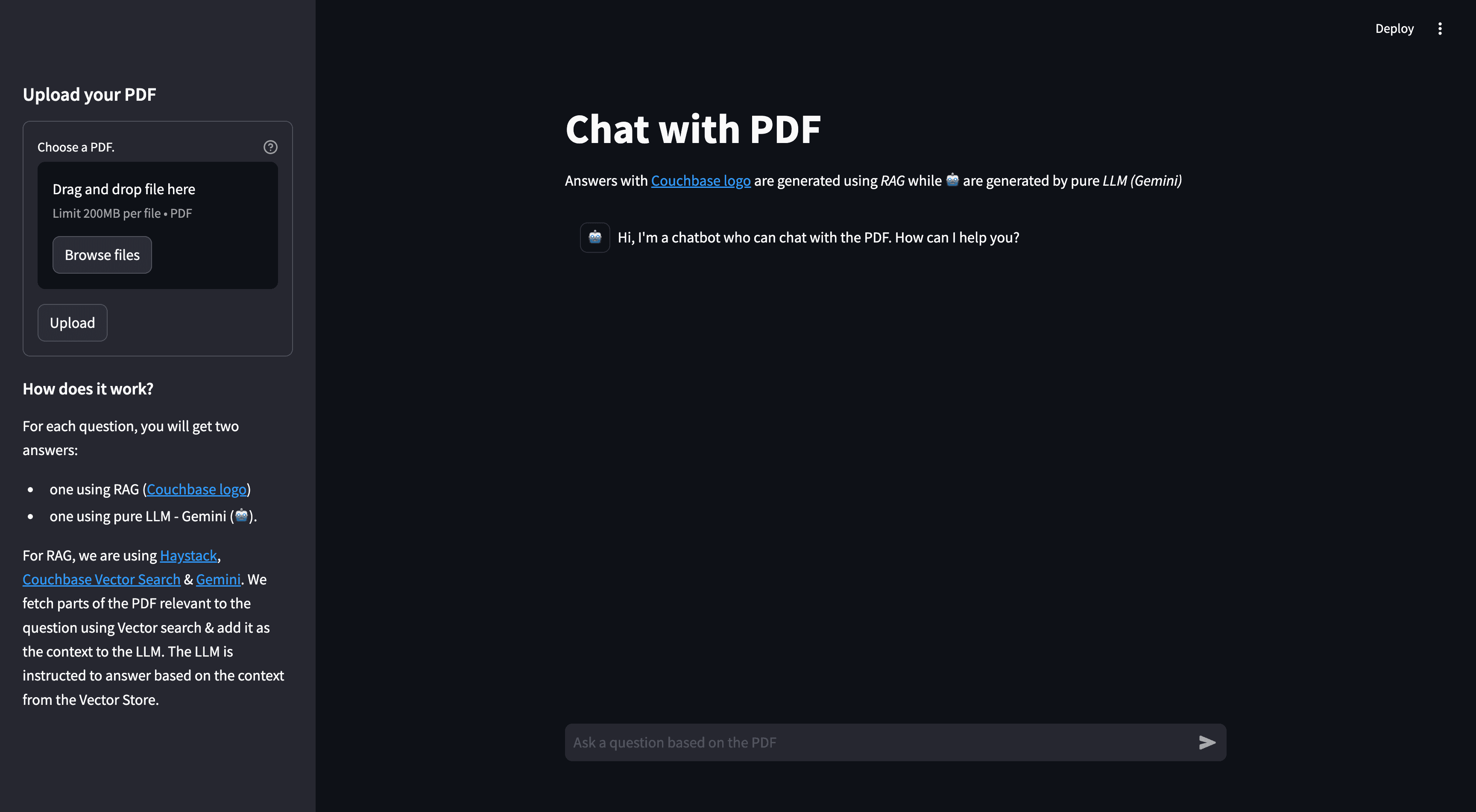
In the main area, there's a chat screen where you can ask questions about the uploaded PDF document. You will receive two responses: one with context from the PDF (Couchbase Logo - ) , and one without the PDF context (Bot Logo - 🤖). This demonstrates how the Retrieval Augmented Generation (RAG) model enhances the answers provided by the language model using the PDF content.

Concepts
The PDF Chat application leverages two powerful concepts: Retrieval-Augmented Generation (RAG) and Vector Search. Together, these techniques enable efficient and context-aware interactions with PDF documents.
Retrieval-Augmented Generation (RAG)
RAG is like having two helpers:
- Retriever: This helper looks through all the PDF documents to find the most relevant information based on your question or prompt.
- Generator: This helper is like a large language model (e.g., GPT-4, Gemini) that can understand natural language and generate human-like responses.
Here's how RAG works:
- You ask a question or provide a prompt to the app.
- The Retriever helper goes through the PDF documents and finds the most relevant passages or sections related to your question using Vector Search.
- The Generator helper takes those relevant passages and your original question, and uses them to generate a clear and contextual answer.
This enhances the context from PDF and LLM is able to give relevant results from the PDF rather than giving generalized results.
Vector Search with Couchbase Hyperscale
Couchbase is a NoSQL database that provides a powerful Hyperscale Vector Search capability. It allows you to store and search through high-dimensional vector representations (embeddings) of textual data at massive scale.
The PDF Chat app uses Haystack to convert the text from the PDF documents into embeddings. These embeddings are then stored in a Couchbase bucket, along with the corresponding text.
When a user asks a question or provides a prompt:
- The app converts the user's query into an embedding using Haystack's embedding models (e.g., OpenAI's embeddings).
- Couchbase's Hyperscale Vector Index is utilized for high-performance vector search. The Hyperscale index is automatically created for the PDF embeddings and their corresponding text content.
- The app queries this index using SQL++ with the
APPROX_VECTOR_DISTANCE()function and the user's query embedding. Couchbase's Hyperscale Vector Search calculates the similarity (e.g., dot product) between the query embedding and the indexed PDF embeddings using approximate nearest neighbor (ANN) search, enabling ultra-fast retrieval. - The nearest neighbor embeddings represent the most semantically similar passages or sections from the PDF documents compared to the user's query.
- The app retrieves the text content associated with these nearest neighbor embeddings, providing the necessary context for generating a relevant response.
- Couchbase's Hyperscale Vector Index is optimized for:
- Massive scale: Billions of documents with sub-second query latency
- Pure vector search: Optimized specifically for RAG and semantic search applications
- SQL++ integration: Leverage familiar SQL++ syntax for vector queries
- The Hyperscale index facilitates fast and accurate retrieval at scale, enabling the app to provide context-aware and relevant responses to the user's queries, even when the phrasing or terminology differs from the PDF content.
- Couchbase's Hyperscale Vector Search integrates seamlessly with Haystack's
CouchbaseQueryDocumentStoreclass, abstracting away the complexities of vector similarity calculations.
Haystack
Haystack is a powerful library that simplifies the process of building applications with large language models (LLMs) and vector stores like Couchbase.
In the PDF Chat app, Haystack is used for several tasks:
- Loading and processing PDF documents: Haystack's PyPDFToDocument component can convert PDF files into Haystack Document objects, which can hold various types of content, including text, metadata, and embeddings.
- Text preprocessing: Haystack's DocumentCleaner removes unwanted characters and formatting from the extracted text, while DocumentSplitter splits the text from the PDF documents into smaller chunks or passages, which are more suitable for embedding and retrieval.
- Embedding generation: Haystack's OpenAIDocumentEmbedder and OpenAITextEmbedder components convert text into vector embeddings using OpenAI's embedding models, enabling semantic search capabilities.
- Text generation: Haystack's OpenAIGenerator component interfaces with OpenAI's language models to generate human-like responses based on the retrieved context and user queries.
- Document storage: Haystack's DocumentWriter component handles the storage of processed documents and their embeddings into the vector store.
- Vector store integration: Haystack provides a CouchbaseDocumentStore class that seamlessly integrates with Couchbase's Vector Search, allowing the app to store and search through the embeddings and their corresponding text.
- Pipelines: Haystack uses Pipelines to combine different components for various tasks. In this app, we have an indexing pipeline for processing and storing documents, and a RAG pipeline for retrieval and generation.
- Prompt Building: Haystack's PromptBuilder component allows you to create custom prompts that guide the language model's behavior and output.
- Answer Building: Haystack's AnswerBuilder component structures the final response by combining the generated text with metadata and source information.
By combining Vector Search with Couchbase, RAG, and Haystack, the PDF Chat app can efficiently ingest PDF documents, convert their content into searchable embeddings, retrieve relevant information based on user queries and conversation context, and generate context-aware and informative responses using large language models.
Let us Understand the Flow
To begin this tutorial, clone the repo and open it up in the IDE of your choice. Now you can learn how to create the PDF Chat App. The whole code is written in chat_with_pdf_with_query_vector_index.py file.
App Flow
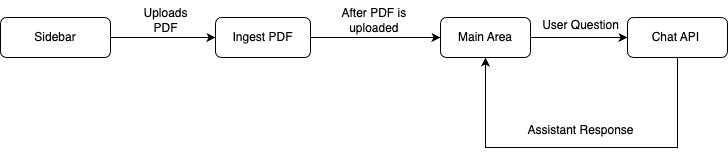
The fundamental workflow of the application is as follows: The user initiates the process from the Main Page's sidebar by uploading a PDF. This action triggers the save_to_vector_store function, which subsequently uploads the PDF into the Couchbase vector store. Following this, the user can now chat with the LLM.
On the Chat Area, the user can pose questions. These inquiries are processed by the Chat API, which consults the LLM for responses, aided by the context provided by RAG. The assistant then delivers the answer, and the user has the option to ask additional questions.
Connecting to Couchbase
The first step is connecting to Couchbase. Couchbase Hyperscale Vector Search is required for PDF Upload as well as during chat (For Retrieval). We will use the Haystack CouchbaseQueryDocumentStore to connect to the Couchbase cluster with Hyperscale vector search support. The connection is established in the get_document_store function.
Note: The same
CouchbaseQueryDocumentStoreconfiguration works with both Hyperscale and Composite vector indexes! You only need to change the SQL++ statement when creating the index.
The connection string and credentials are read from the environment variables. We perform some basic required checks for the environment variable not being set in the secrets.toml, and then proceed to connect to the Couchbase cluster. We connect to the cluster using connect method.
from couchbase_haystack import (
    CouchbaseQueryDocumentStore,
    CouchbasePasswordAuthenticator,
    CouchbaseClusterOptions,
    QueryVectorSearchType,
    QueryVectorSearchSimilarity,
    CouchbaseQueryOptions
)
from couchbase.n1ql import QueryScanConsistency
from datetime import timedelta

@st.cache_resource(show_spinner="Connecting to Vector Store")
def get_document_store():
    """Return the Couchbase document store using CouchbaseQueryDocumentStore."""
    return CouchbaseQueryDocumentStore(
        cluster_connection_string=Secret.from_env_var("DB_CONN_STR"),
        authenticator=CouchbasePasswordAuthenticator(
            username=Secret.from_env_var("DB_USERNAME"),
            password=Secret.from_env_var("DB_PASSWORD")
        ),
        cluster_options=CouchbaseClusterOptions(profile='wan_development'),
        bucket=os.getenv("DB_BUCKET"),
        scope=os.getenv("DB_SCOPE"),
        collection=os.getenv("DB_COLLECTION"),
        search_type=QueryVectorSearchType.ANN,
        similarity=QueryVectorSearchSimilarity.DOT,
        nprobes=10,
        query_options=CouchbaseQueryOptions(
            timeout=timedelta(seconds=60),
            scan_consistency=QueryScanConsistency.NOT_BOUNDED
        )
    )
We will define the bucket, scope, and collection names from Environment Variables.
Configuration Parameters:
search_type=QueryVectorSearchType.ANN: Uses approximate nearest neighbor search for fast retrievalsimilarity=QueryVectorSearchSimilarity.DOT: Uses dot product similarity (optimized for OpenAI embeddings)nprobes=10: Controls the search accuracy/speed tradeoff (higher = more accurate but slower)query_options: Configures query timeout and consistency settings
Initialize Couchbase Vector Store
We will now initialize the CouchbaseQueryDocumentStore which will be used for storing and retrieving document embeddings.
# Initialize document store
document_store = get_document_store()
Uploading And Ingesting PDF
The save_to_vector_store function takes care of uploading the PDF file in vector format to the Couchbase Database using the Haystack indexing pipeline. It converts the PDF to documents, cleans them, splits text into small chunks, generates embeddings for those chunks, and ingests the chunks and their embeddings into the Couchbase vector store.
Upload PDF
This part of code creates a file uploader on sidebar using Streamlit library. After PDF is uploaded, save_to_vector_store function is called to further process the PDF.
with st.form("upload pdf"):
    uploaded_file = st.file_uploader("Choose a PDF.", help="The document will be deleted after one hour of inactivity (TTL).", type="pdf")
    submitted = st.form_submit_button("Upload")
    if submitted:
        save_to_vector_store(uploaded_file, indexing_pipeline)
Read, Load, and Process Uploaded PDF
The save_to_vector_store function ensures that the uploaded PDF file is properly handled, loaded, and prepared for storage in the vector store. It first checks if a file was actually uploaded. Then the uploaded file is saved to a temporary file.
The indexing pipeline takes care of converting the PDF to documents, cleaning them, splitting them into chunks, generating embeddings, and storing them in the Couchbase vector store.
def save_to_vector_store(uploaded_file, indexing_pipeline):
    """Process the PDF & store it in Couchbase Vector Store"""
    if uploaded_file is not None:
        temp_dir = tempfile.TemporaryDirectory()
        temp_file_path = os.path.join(temp_dir.name, uploaded_file.name)

        with open(temp_file_path, "wb") as f:
            f.write(uploaded_file.getvalue())
        result = indexing_pipeline.run({"converter": {"sources": [temp_file_path]}})

        st.info(f"PDF loaded into vector store: {result['writer']['documents_written']} documents indexed")
Indexing Pipeline
The indexing pipeline is created to handle the entire process of ingesting PDFs into the vector store. It includes the following components:
- PyPDFToDocument: Converts PDF files to Haystack Document objects.
- DocumentCleaner: Cleans the extracted text from the PDF.
- DocumentSplitter: Splits the cleaned text into smaller chunks.
- OpenAIDocumentEmbedder: Generates embeddings for the document chunks.
- DocumentWriter: Writes the processed documents and their embeddings to the Couchbase vector store.
from haystack import Pipeline
from haystack.components.converters import PyPDFToDocument
from haystack.components.preprocessors import DocumentCleaner, DocumentSplitter
from haystack.components.embedders import OpenAIDocumentEmbedder, OpenAITextEmbedder
from haystack.components.generators import OpenAIGenerator
from haystack.components.builders import PromptBuilder, AnswerBuilder
from haystack.components.writers import DocumentWriter

indexing_pipeline = Pipeline()
indexing_pipeline.add_component("converter", PyPDFToDocument())
indexing_pipeline.add_component("cleaner", DocumentCleaner())
indexing_pipeline.add_component("splitter", DocumentSplitter(split_by="word", split_length=250, split_overlap=50))
indexing_pipeline.add_component("embedder", OpenAIDocumentEmbedder())
indexing_pipeline.add_component("writer", DocumentWriter(document_store=document_store))

indexing_pipeline.connect("converter.documents", "cleaner.documents")
indexing_pipeline.connect("cleaner.documents", "splitter.documents")
indexing_pipeline.connect("splitter.documents", "embedder.documents")
indexing_pipeline.connect("embedder.documents", "writer.documents")
After the documents are written to Couchbase, the application automatically creates the Hyperscale vector index using SQL++.
Chat With PDF
After uploading the PDF into Couchbase, we are now ready to utilize the power of Couchbase Vector Search, RAG and LLM to get context based answers to our questions. When the user asks a question. The assistant (LLM) is called here with RAG context, the response from the assistant is sent back to the user.
RAG Pipeline
We create a RAG (Retrieval-Augmented Generation) pipeline using Haystack components. This pipeline handles the entire process of retrieving relevant context from the vector store and generating responses using the LLM.
The OpenAIGenerator is a crucial component in our RAG pipeline, responsible for generating human-like responses based on the retrieved context and user questions. Here's a more detailed explanation of its configuration and role:
- API Key: The OpenAIGenerator uses the OPENAI_API_KEY from the environment variables to authenticate with the OpenAI API.
- Model: It's configured to use the "gpt-5" model, which is a powerful language model capable of understanding context and generating coherent, relevant responses.
- Role in the Pipeline: The OpenAIGenerator receives a prompt constructed by the PromptBuilder, which includes the user's question and relevant context retrieved from the vector store. It then generates a response based on this input.
- Integration: The generator's output is connected to the AnswerBuilder component, which formats the final response for display to the user.
By using the OpenAIGenerator, we leverage state-of-the-art natural language processing capabilities to provide accurate, context-aware answers to user queries about the uploaded PDF content.
from haystack.components.embedders import OpenAITextEmbedder
from couchbase_haystack import CouchbaseQueryEmbeddingRetriever
from haystack.components.builders import PromptBuilder, AnswerBuilder

rag_pipeline = Pipeline()
rag_pipeline.add_component("query_embedder", OpenAITextEmbedder())
rag_pipeline.add_component("retriever", CouchbaseQueryEmbeddingRetriever(document_store=document_store))
rag_pipeline.add_component("prompt_builder", PromptBuilder(template="""
You are a helpful bot. If you cannot answer based on the context provided, respond with a generic answer. Answer the question as truthfully as possible using the context below:
{% for doc in documents %}
    {{ doc.content }}
{% endfor %}

Question: {{question}}
"""))
rag_pipeline.add_component(
    "llm",
    OpenAIGenerator(
        api_key=OPENAI_API_KEY,
        model="gpt-5",
    ),
)
rag_pipeline.add_component("answer_builder", AnswerBuilder())

rag_pipeline.connect("query_embedder", "retriever.query_embedding")
rag_pipeline.connect("retriever.documents", "prompt_builder.documents")
rag_pipeline.connect("prompt_builder.prompt", "llm.prompt")
rag_pipeline.connect("llm.replies", "answer_builder.replies")
rag_pipeline.connect("llm.meta", "answer_builder.meta")
rag_pipeline.connect("retriever", "answer_builder.documents")
Key Point: We use
CouchbaseQueryEmbeddingRetrieverwhich queries the Hyperscale vector index using SQL++ with theAPPROX_VECTOR_DISTANCE()function.
User Asks A Question
This section creates an interactive chat interface where users can ask questions based on the uploaded PDF. The key steps are:
- Display a chat input box with the prompt "Ask a question based on the PDF".
- When the user submits a question:
- Display the user's question in the chat interface.
- Add the user's question to the chat history.
- Run the RAG pipeline to generate a response.
- Display the response in the chat interface.
- Add the assistant's response to the chat history.
if question := st.chat_input("Ask a question based on the PDF"):
    st.chat_message("user").markdown(question)
    st.session_state.messages.append({"role": "user", "content": question, "avatar": "👤"})

    # RAG response
    with st.chat_message("assistant", avatar=couchbase_logo):
        message_placeholder = st.empty()
        rag_result = rag_pipeline.run(
            {
                "query_embedder": {"text": question},
                "retriever": {"top_k": 3},
                "prompt_builder": {"question": question},
                "answer_builder": {"query": question},
            }
        )
        rag_response = rag_result["answer_builder"]["answers"][0].data
        message_placeholder.markdown(rag_response)
    st.session_state.messages.append({"role": "assistant", "content": rag_response, "avatar": couchbase_logo})
This setup allows users to have a conversational experience, asking questions related to the uploaded PDF, with responses generated by the RAG pipeline. Both the user's questions and the assistant's responses are displayed in the chat interface, along with their respective roles and avatars.
Stream Answer without context
Similar to last section, we will get answer from LLM of the user question. Answers from here are also shown in the UI to showcase difference on how using RAG gives better and more context enabled results.
# stream the response from the pure LLM

# Add placeholder for streaming the response
    with st.chat_message("ai", avatar="🤖"):
        message_placeholder_pure_llm = st.empty()
        pure_llm_result = rag_pipeline.run(
            {
                "prompt_builder": {"question": question},
                "llm": {},
                "answer_builder": {"query": question},
                "query_embedder": {"text": question}
            }
        )
        pure_llm_response = pure_llm_result["answer_builder"]["answers"][0].data
        message_placeholder_pure_llm.markdown(pure_llm_response)
    st.session_state.messages.append({"role": "assistant", "content": pure_llm_response, "avatar": "🤖"})
Conclusion
Congratulations! You've successfully built a PDF Chat application using Couchbase Hyperscale Vector Index, Haystack, and OpenAI. This application demonstrates the power of combining high-performance vector search with large language models to create an intelligent, context-aware chat interface for PDF documents.
Through this tutorial, you've learned how to:
- Set up a Couchbase cluster with Hyperscale vector search capabilities.
- Use Haystack to process and index PDF documents.
- Implement a Retrieval-Augmented Generation (RAG) pipeline.
- Create an interactive chat interface using Streamlit.
- Compare responses from RAG and pure LLM approaches.
We hope this tutorial has given you a solid foundation for building AI-powered document interaction systems with Couchbase Hyperscale Vector Index and Haystack. Happy coding!