

Looker Studio with Couchbase Data API
- Connect Google Looker Studio to Couchbase through the Data API
- Configure auth, select collections or use custom SQL++ queries
- Learn schema inference, limits, and troubleshooting tips
Introduction
In this tutorial, you'll connect Google Looker Studio to Couchbase using the Couchbase Data API connector and build reports directly on live data in your cluster — with no ETL and no intermediate storage. You'll authenticate to your cluster, choose the data to visualize (either by selecting a bucket.scope.collection or by writing a custom SQL++ query), and let the connector infer your schema automatically so fields are ready to drop into charts and tables within minutes. The connector reaches your cluster through the Couchbase Data API and runs your queries via the Query Service — all from within Looker Studio. Note that Looker Studio caches query results on its own end, so charts may serve cached data between refreshes (covered in more detail below).
What you'll build: a live Looker Studio data source connected to a Couchbase collection, with fields inferred and ready to use in charts and tables.
How to run this tutorial
This tutorial runs entirely in the Looker Studio web UI — there is nothing to install locally and no code to write. The only thing you need beforehand is access to a Couchbase cluster with the Data API enabled, covered in Before you start.
Before you start
Have a Google account
You need a Google account to sign in to Looker Studio.
Create and Deploy Your Free Tier Operational cluster on Capella
To get started with Couchbase Capella, create an account and use it to deploy a forever free tier operational cluster. This account provides you with an environment where you can explore and learn about Capella with no time constraint.
To know more, please follow the instructions.
Capella Configuration
- Create the database credentials with Read access to the travel-sample bucket used in the connector. The user also needs permission to query the system catalogs (
system:buckets,system:all_scopes,system:keyspaces) and runINFER— these are used for collection discovery and schema inference. - Allow access to the cluster by adding
0.0.0.0/0(allow all) under Settings → Networking → Allowed IP Addresses. Looker Studio runs on Google's servers with dynamic IP addresses, so a fixed range cannot be allowlisted. - Enable the Data API on your cluster: go to Connect → Data API and click Enable Data API. Once enabled, copy your Data API endpoint — you'll need it during authentication.
- Load the travel-sample bucket: go to Data Tools → Import and import travel-sample. This is used in the Build your first report section.
Add the connector in Looker Studio
Once the prerequisites above are in place:
- Open Looker Studio — go to Looker Studio and sign in.
- Create or open a report — start a new report or open an existing one.
- Add a data source — click Add data (or the + button).
- Find the connector — search for "Couchbase Data API" in the connector gallery and select it.
Next, you'll authenticate and configure the data source.
Authentication
When prompted, enter your credentials. Note that Looker Studio labels the endpoint field "Path" — this is your Couchbase Data API endpoint.
- Path — Your Data API endpoint. Copy it from Connect → Data API in the Capella UI.
- Username / Password — Your Couchbase database credentials.
Refer to the Couchbase Data API documentation for details on locating your endpoint.
Build your first report
After authenticating, you are taken to the configuration screen. Choose a mode and connect to your data.
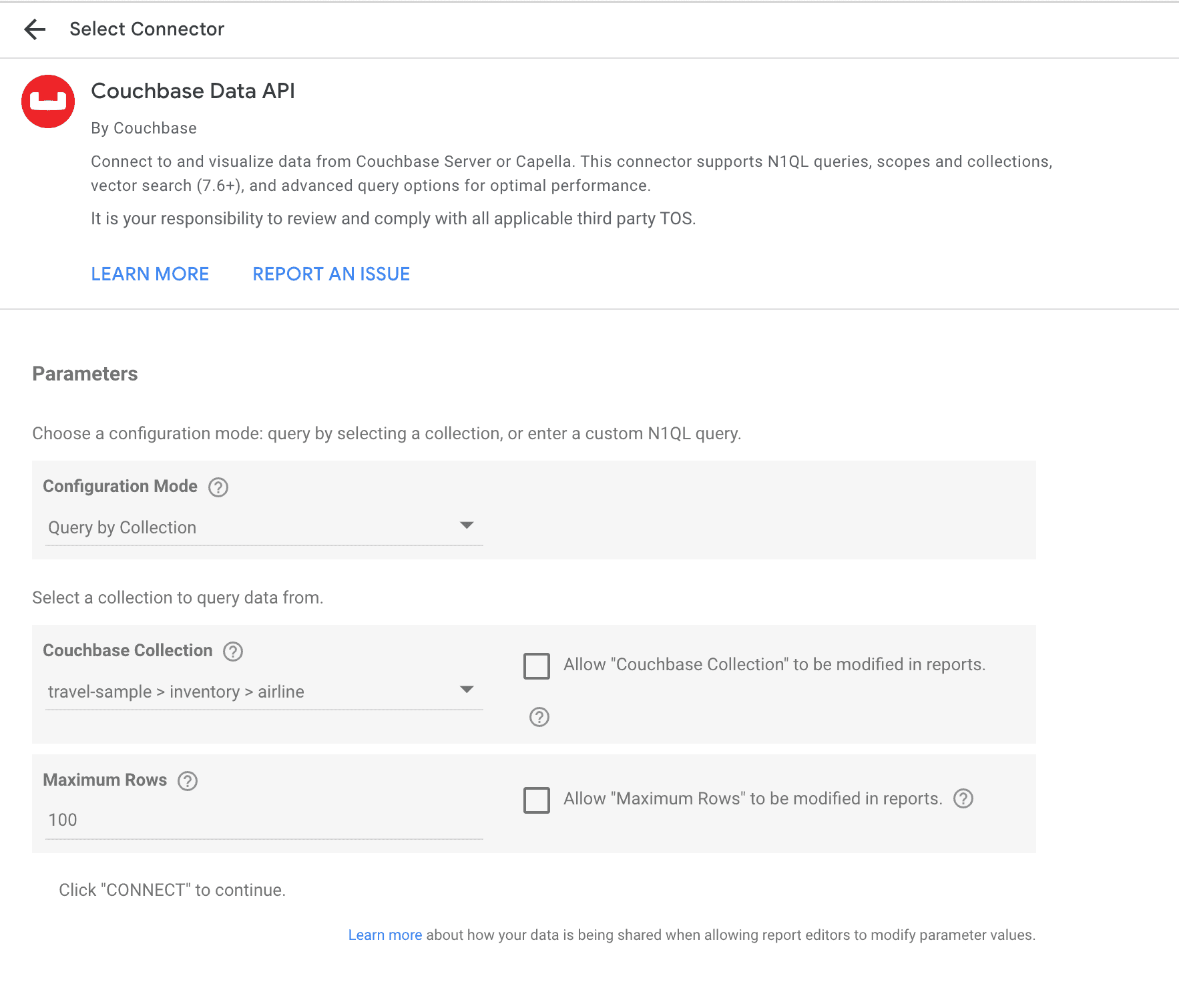
Mode: Query by Collection
Select a bucket > scope > collection from the dropdown — the connector discovers them automatically. Use this mode for quick exploration of a single collection.
For this example, select travel-sample → inventory → airline and leave Maximum Rows at the default (100), then click Connect and Add to Report.
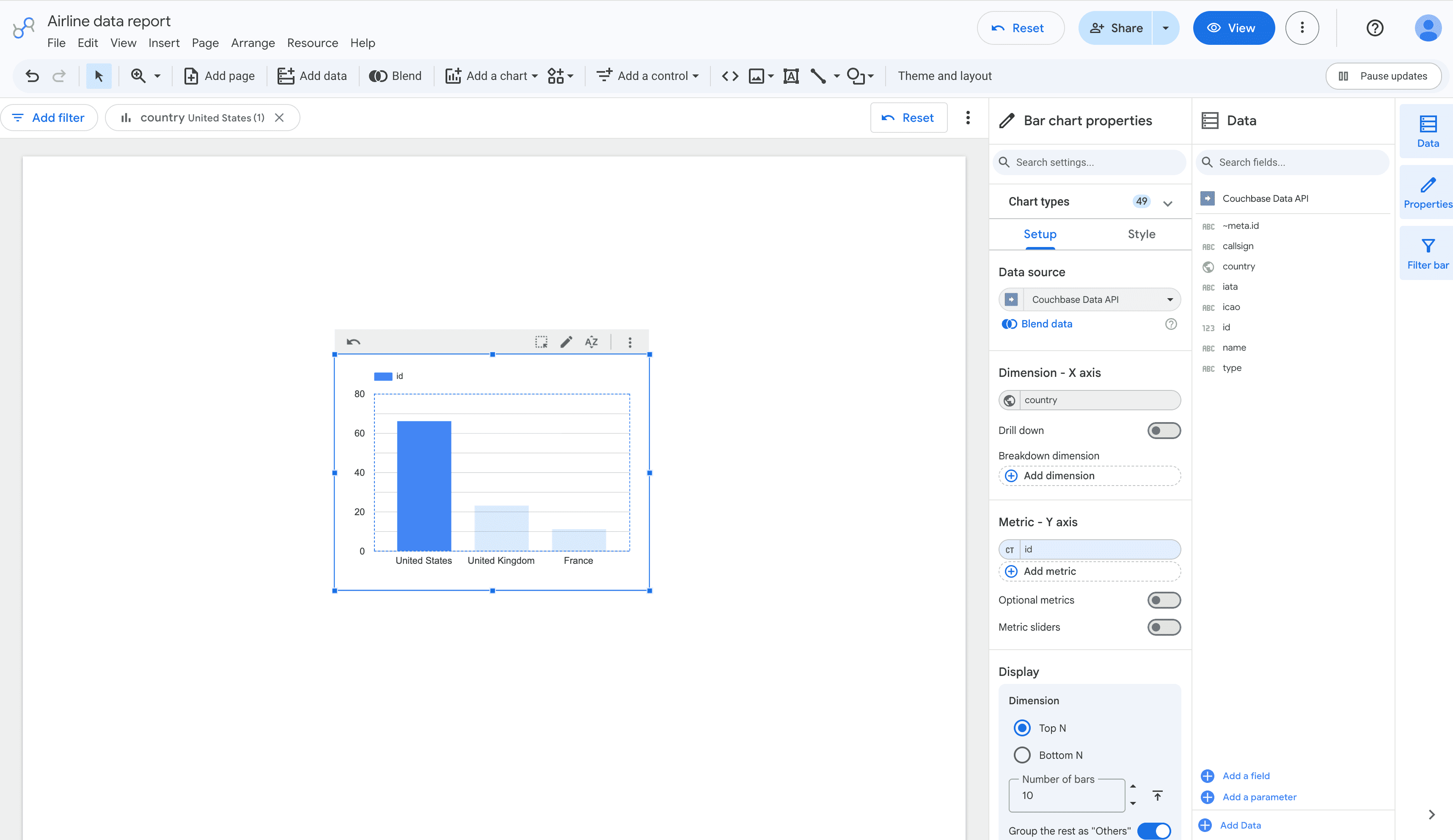
 Once added, click Insert → Bar chart. In the Data panel on the right, set the Dimension (X axis) to
 country. For the Metric (Y axis), Looker Studio adds a field such as id with the Count aggregation — this counts the number of airlines in each country. Click the metric if you want to change its aggregation. Looker Studio then renders a bar chart of the number of airlines grouped by country.
 The connector adds no intermediate storage or ETL — when it queries the source, it reads live from your cluster. Note, however, that Looker Studio caches query results on its own end (its "data freshness" cache), so charts may serve cached data between refreshes rather than hitting the cluster on every view. Community connectors typically use Looker Studio's default freshness (up to 12 hours), which is generally not user-adjustable. You can force a live re-query at any time with Refresh data in the report toolbar.
Mode: Use Custom Query
Use this mode to write your own SQL++ query. Paste any valid statement — include a LIMIT for performance. This gives you full control over filtering, joining, and aggregating before the data reaches Looker Studio.
For example, the same airline count pre-aggregated on the cluster:
SELECT country, COUNT(*) AS airline_count
FROM `travel-sample`.`inventory`.`airline`
GROUP BY country
ORDER BY airline_count DESC
LIMIT 20
Pre-aggregating in SQL++ is more efficient for large collections than pulling all rows into Looker Studio.
Tips and Best Practices
- Prefer
Query by Collectionfor quick starts and simpler schemas: Collection mode provides more predictable schema inference than custom queries. - Always add a
LIMITwhen exploring with custom queries: UseLIMIT 100-1000for initial testing to ensure fast schema inference and data retrieval. - Ensure your user has at least query and read access on the target collections and system catalogs for metadata discovery.
- For consistent schema inference: Structure your data with consistent field types across documents. Avoid mixing numbers and strings in the same field.
- Handle complex nested data: Consider flattening deeply nested objects in your SQL++ queries for better Looker Studio compatibility.
- Test schema inference separately: Use small LIMIT clauses first to verify schema detection before processing large datasets.
Troubleshooting
Authentication and Connection Issues
- Authentication error: Check host/port, credentials, and that the Data API is reachable from Looker Studio.
- Timeout or network errors: Verify network connectivity and firewall settings between Looker Studio and your Couchbase cluster.
Schema Inference Problems
-
Empty schema or no fields detected:
- Ensure the collection contains documents and is not empty
- For custom queries, verify the statement returns results and add appropriate
LIMITclauses - Check that your user has permissions to read the collection and execute queries
-
INFER statement failures:
- The connector first attempts
INFER collectionorINFER (customQuery)with sampling options - If INFER fails, it falls back to executing your query with
LIMIT 1and inferring from a single document - INFER may fail on very large collections or complex queries - the fallback usually resolves this
- The connector first attempts
-
Fields appear as STRING when they should be NUMBER:
- Your data has mixed types (some documents have numbers, others have strings) in the same field
- The connector defaults to STRING for safety when types are inconsistent
- Consider data cleanup or use SQL++ functions to cast types consistently
-
Missing fields that exist in your data:
- Schema inference is sample-based - fields present only in unsampled documents may not be detected
- Try increasing the collection size or adjusting your query to ensure representative sampling
- For custom queries, ensure your query includes all the fields you want to expose
-
Nested fields not working correctly:
- Very deep object hierarchies may not be fully expanded by the INFER process
- Arrays of objects become stringified JSON instead of individual fields
- Consider flattening complex structures in your SQL++ query for better field detection
-
"No properties in any INFER flavors" error:
- The INFER statement succeeded but found no recognizable field structures
- This typically happens with collections containing only primitive values or very inconsistent document structures
- Try a custom query that shapes the data into a more consistent structure
Query and Data Issues
- Query errors from the service: Review the error text surfaced in Looker Studio; fix syntax, permissions, or keyspace names.
- Permission errors during schema inference: Ensure your user can execute INFER statements and read from system catalogs.
- Performance issues: Add appropriate
LIMITclauses and avoid very complex JOINs for better connector performance.
Conclusion
You've connected Google Looker Studio to Couchbase using the Data API connector and built a live report on travel-sample data.
Next Steps
Now that you have a live connection, you can:
- Build additional charts and dashboards on other collections in your cluster.
- Switch to
Use Custom Querymode to filter, join, or pre-aggregate data with SQL++ before it reaches Looker Studio.
Support
The connector is open source. For the source code, or to report a bug or request a feature, see the Couchbase Data API Looker Studio connector on GitHub and open an issue.